2025/03/05

Autel Ultra S2 vs MSUltra

 What is the difference between the Autel MaxiSys Ultra and the new Ultra S2 diagnostic scanner?

autel ultra s2 vs ultra

1. Hardware Improvements


UPGRADED HARDWARE

  1. Larger 13.7”Anti-Glare Screen
  2. Increased Storage (512GB)
  3. Supports Wi-Fi 6 for High-Speed, Low-Latency Data Transmission
  4. Enhanced Docking Station with Tablet “Fast Charge”
  5. Faster 2.7G 8-Core Processor
  • Screen Size and Quality:
    • The Ultra S2 features a larger and sharper screen compared to the older Ultra model. The improved display enhances visibility and user experience, making it easier to read diagnostic data and navigate the interface.
    • The monitor is better, providing a clearer and more detailed view of diagnostic information.
  • Size and Weight:
    • The Ultra S2 is slightly larger but lighter than its predecessor, making it more portable and easier to handle during diagnostics.
  • Memory:

The new model comes with more memory, which allows for faster processing and the ability to handle more complex diagnostic tasks without lag.


2. Software Enhancements

  • Network Diagnostics:
    • One of the most significant upgrades in the Ultra S2 is its advanced network diagnostics capabilities. The tool now includes features that help diagnose communication issues between modules in a vehicle’s network. This is particularly useful for identifying problems with module-to-module communication, which can be challenging to diagnose with traditional tools.
    • The topology map feature, which was introduced a few years ago, has been further improved. It now provides a detailed map of the vehicle’s network, showing which modules are connected and on which network they communicate.
  • Terminating Resistor Values:
    • The Ultra S2 can now display terminating resistor values for CAN networks. This feature allows technicians to verify the correct resistor values, which are crucial for proper network communication.
  • Ping Functionality:
    • A groundbreaking feature in the Ultra S2 is the ability to ping specific modules. This allows technicians to send a signal to a module and wait for a response, similar to how network diagnostics work in IT. This feature helps identify communication issues, such as wiring faults, connector problems, or even module failures, by monitoring packet loss during the ping process.
    • This functionality is particularly useful for live diagnostics, where technicians can manipulate the wiring harness or move around the vehicle while monitoring the ping results to pinpoint the exact location of a fault.

Comparison Summary

AspectAutel MaxiSys UltraAutel Ultra S2
Screen Size12.9-inch touchscreen13.7 inch touch screen
VCIVCMI 5 in 1VCMI2 6 in 1
Weight/DesignStandard tablet weightSlightly lighter, more ergonomic
Memory256GB512GB
ProcessorOcta-core (2.3GHz Quad + 1.7GHz Quad)2.7G 8-Core Processor
WiFiWiFi 5.0WiFi 6.0
Topology MappingTopology 2.0, Basic network map visualizationTopology 3.0, Enhanced with resistor values and pinging
Network DiagnosticsLimited to mapping and standard diagnosticsReal-time resistor values, module pinging
Use CaseBroad diagnostics, ECU programmingAdvanced network troubleshooting
Multi-point Digital Vehicle Inspection (AI)NoYes

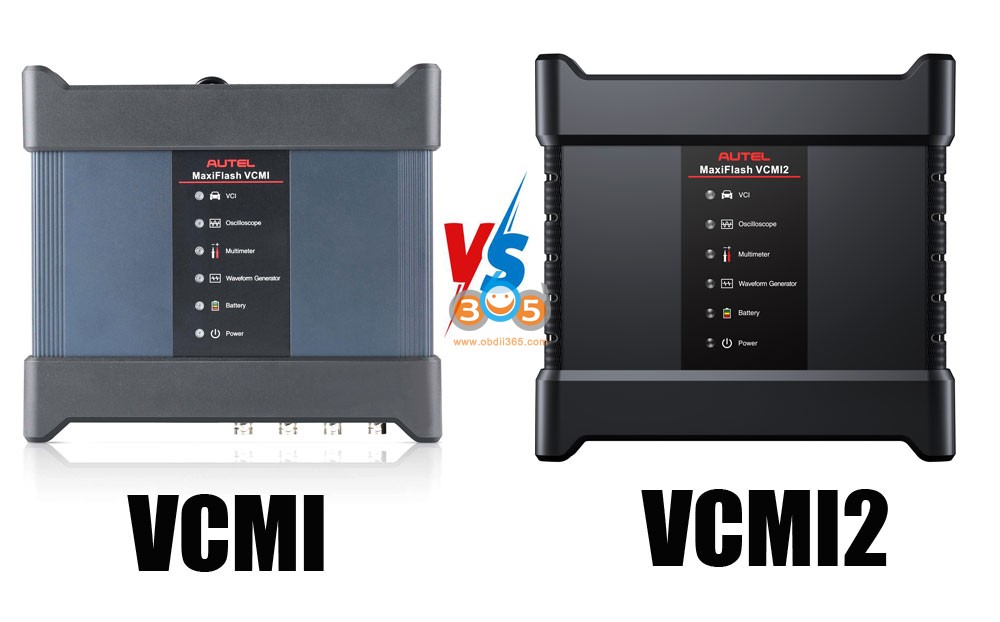
VCMI vs VCMI2

Ultra: comes with 5-in-1 VCMI that integrates VCI, oscilloscope, waveform generator, multimeter, and CAN BUS tester.
Ultra S2: comes with new 6 in 1 VCMI2 that integrates VCI, oscilloscope, waveform generator, multimeter, CAN BUS tester and standalone Remote Expert device.

autel vcmi vs vcmi2


In Sum:
Ultra S2 has new 6 in 1 VCMI2.
The Ultra 2 offers actionable, real-time network diagnostics, cutting diagnostic time compared to the Ultra’s more static topology feature.
The Ultra 2 improves upon the original Ultra with a larger, sharper screen, more memory, slightly lighter weight and possibly a faster processor.

MSUltra S2 adapts AI technology. It supports Multi-point Digital Vehicle Inspection: AI-powered image analysis for auto-detection of dents and scratches.

The Ultra 2 introduces sophisticated network diagnostic tools—real-time resistor value display and module pinging—that enable technicians to isolate communication faults faster and more precisely than the Ultra’s topology mapping alone. These features, described as unprecedented in aftermarket scan tools, suggest the Ultra 2 is a significant leap forward for professional diagnostics, particularly for complex network issues.

2025/02/26

Autel IM508 Failed to Program Fiat 1999-2005 All Keys Lost via OBD?

 Problem:

Fiat Punto 1999-2005
All Keys lost
Autel IM508 cannot connect to immo box.

Failed to make key via OBD.

Autel IM508 Failed to do Fiat 1999-2005 All Keys Lost via OBD? 1

Autel IM508 Failed to do Fiat 1999-2005 All Keys Lost via OBD? 2

Solution:

Not possibile on obd. Dismantle the bcm and read 93c66.
No support only on bench id48 transponder.
Remove BCM and read 93c66 eeprom on bench.

2025/02/24

How to Remove Benz HU6 Instrument Cluster?

 Yanhua Mini ACDP2/ACDP1 released new module 37 for Mercedes Benz HU6 cluster mileage correction.


For HU6 instrument cluster, just need to modify the mileage in cluster, don’t need to change km in EIS or other modules.

ACDP reads data as bin file. You can modify the file by yourself and write it back.

Module functions:
Support mileage correction for the MB HU6 instrument module (A167/A213/A247) with chip model R7F701403.

Supported vehicle models:
Support for Mercedes-Benz W247 A/B/CLA/GLA/GLB after 2019
Support for Mercedes-Benz W177 CLA/GLA after 2019
Support for Mercedes-Benz W167 GLE/GLS after 2019
Support for Mercedes-Benz W213 E/CLS after 2020
Support for Mercedes-Benz H243 EQA and X243 EQB after 2021


Here obdii365.com shows the HU6 cluster location and how to remove the cluster.

Remove Benz HU6 Instrument Cluster 1

The full LCD instrument cluster computer for post-2020 models is located under the driver’s seat.

Remove Benz HU6 Instrument Cluster 2

Remove the floor panel, and proceed to disassemble the instrument cluster.

Remove Benz HU6 Instrument Cluster 3

This is the HU6 instrument cluster module.

Remove Benz HU6 Instrument Cluster 4

Remove Benz HU6 Instrument Cluster 5


Read also:

Change Benz W247 W177 W167 W213 2019- Mileage by Yanhua ACDP Module 37

Disable Active Alarm on New Platform Toyota BZX4 and Tundra

 Tutorial: how to disable active alarm on new Platform Toyota BZX4 and Tundra.


The newest system just these two model only does NOT effect the Lexus Model. There is no alarm bypass at the driver door lock with key. You can set the alarm with key by locking it but use the key to opens will set the alarm and no communication to the CAN Bus. Aka>>> Active Alarm.


Setting the alarm to active mode so there no communication to the obd2.. radio swap won’t work because they’re marred to the truck. If you swap them they get black list killing the radio.
Here is how to deactivate an active alarm:
  1. Cut an E key for the vehicle, and you should close all doors, trunk/hatch, and hood.
  2. Wait for the alarm to stop sounding; it usually takes about 60 seconds to stop sounding. (If the alarm is sounding, this process will not work.)
  3. Insert the E key into the driver’s door lock and turn it in the following sequence: Left, Left, Right, Right, Left, Right. (This must be done before the alarm goes off. You must cycle the key in this sequence before the alarm goes off, or it will not work.)
  4. The alarm will be deactivated. You can then open the door.

2025/02/23

Program 2024 Nissan Sentra Key with Topdon Rlink & Consult3 Plus R2R

 Programming a key for a modern vehicle like the 2024 Nissan Sentra can seem daunting, but with the right tools and software, the process becomes straightforward. In this guide, we’ll walk you through the steps to program a key using the CONSULT 3 Plus R2R software and the Topdon RLink J2534 pass-through device. This method is cost-effective and eliminates the need for expensive dealer tools.


Tools and Software Required

  1. CONSULT 3 Plus R2R Software: This is Nissan’s dealer-level diagnostic software, available for download from Nissan Tech Info. The R2R (Right to Repair) version allows independent technicians to access dealer-level functions.
  2. Topdon RLink J2534/Rlink X7/Rlink Lite Pass-Through Device: This device connects your computer to the vehicle’s OBD-II port, enabling communication with the car’s immobilizer system. Must have Nissan software license activated to use with the Rlink J2534.
  3. Nissan Tech Info Account: You’ll need to create an account and purchase a one-day license for the CONSULT 3 Plus R2R software (approximately $50).
  4. Driver Management Software: Ensure you have the necessary drivers installed for the Topdon RLink device to communicate with the vehicle.


Why Use CONSULT 3 Plus R2R and Topdon RLink?

  • Cost-Effective: The R2R version of CONSULT 3 Plus is significantly cheaper than traditional dealer tools.
  • Versatile: The Topdon RLink J2534 device is compatible with a wide range of vehicles, making it a valuable tool for any automotive technician.
  • User-Friendly: Both the software and hardware are designed to simplify complex tasks like key programming.


Step-by-Step Guide to Programming a Key

1. Set Up the Software and Hardware

  • Download and install the CONSULT 3 Plus R2R software from Nissan Tech Info. Make sure to select the R2R option during the download process.
  • Install the Topdon RLink app and ensure the device drivers are properly installed on your computer. Follow this guide to install the manager driver.
  • Connect the Topdon RLink device to your computer and the OBD-II port of the 2024 Nissan Sentra.

Program 2024 Nissan Sentra Key with Topdon Rlink & Consult3 Plus R2R 1

Program 2024 Nissan Sentra Key with Topdon Rlink & Consult3 Plus R2R 2

Program 2024 Nissan Sentra Key with Topdon Rlink & Consult3 Plus R2R 3

Program 2024 Nissan Sentra Key with Topdon Rlink & Consult3 Plus R2R 4

Program 2024 Nissan Sentra Key with Topdon Rlink & Consult3 Plus R2R 5

Program 2024 Nissan Sentra Key with Topdon Rlink & Consult3 Plus R2R 6

2. Connect to the Vehicle

  • Open the CONSULT 3 Plus software and select the VCI (Vehicle Communication Interface) option. Choose the Topdon RLink as your connection device.
  • Click Connect to establish communication with the vehicle. Once connected, the software will detect the vehicle’s VIN automatically.

Program 2024 Nissan Sentra Key with Topdon Rlink & Consult3 Plus R2R 7

Program 2024 Nissan Sentra Key with Topdon Rlink & Consult3 Plus R2R 8

Program 2024 Nissan Sentra Key with Topdon Rlink & Consult3 Plus R2R 9

Program 2024 Nissan Sentra Key with Topdon Rlink & Consult3 Plus R2R 10

3. Access the Immobilizer System

  • Navigate to the Immobilizer section in the CONSULT 3 Plus software.
  • Select Automatic Selection to allow the software to read the vehicle’s VIN and immobilizer data.
  • Confirm the VIN and proceed to the next step.

4. Perform Key Registration

  • Enter your Nissan Tech Info credentials (username and password) to authenticate the software.
  • Select Register Key from the immobilizer menu and click Continue.
  • Follow the on-screen instructions:
    • Turn the vehicle’s ignition to the OFF position.
    • Press the Start/Stop button with the new key to initiate the registration process.
    • Click Next to confirm the key registration.

Program 2024 Nissan Sentra Key with Topdon Rlink & Consult3 Plus R2R 11

Program 2024 Nissan Sentra Key with Topdon Rlink & Consult3 Plus R2R 12

Program 2024 Nissan Sentra Key with Topdon Rlink & Consult3 Plus R2R 13

Program 2024 Nissan Sentra Key with Topdon Rlink & Consult3 Plus R2R 14

Program 2024 Nissan Sentra Key with Topdon Rlink & Consult3 Plus R2R 15

5. Complete the Key Programming

  • The software will prompt you to add the new key. Place the key near the push-button start area and follow the instructions.
  • Once the key is successfully registered, the software will display a confirmation message.
  • If the process shows as “failed” but the key works, the registration was likely successful. This is a common occurrence with some software versions.

Program 2024 Nissan Sentra Key with Topdon Rlink & Consult3 Plus R2R 16

Program 2024 Nissan Sentra Key with Topdon Rlink & Consult3 Plus R2R 17

Program 2024 Nissan Sentra Key with Topdon Rlink & Consult3 Plus R2R 18

Program 2024 Nissan Sentra Key with Topdon Rlink & Consult3 Plus R2R 19

Program 2024 Nissan Sentra Key with Topdon Rlink & Consult3 Plus R2R 20

Tips for Success

  • Ensure Proper Connection: Double-check that the Topdon RLink J2534 device is securely connected to both the computer and the vehicle’s OBD-II port.
  • Use a Reliable Power Source: Make sure the vehicle’s battery is fully charged or connected to a power source to avoid interruptions during the programming process.
  • Follow On-Screen Prompts: The CONSULT 3 Plus R2R software provides detailed instructions. Follow them carefully to avoid errors.
http://blog.obdii365.com/2025/02/23/program-2024-nissan-sentra-key-with-topdon-rlink-j2534-consult3-plus-r2r/

2025/02/21

How to Use Topdon Rlink J2534 with wiTech 2.0 Software?

 Good news! The Topdon Rlink J2534 VCI was tested and connected fine with witech2 Chrysler Dodge Jeep diagnostic software.


Tools required:

Topdon Rlink X7/ Rlink Lite J2534 interface

Chrysler software license 

wiTech 2.0 software with official account

Topdon Rlink X7

Free download wiTech2 software

wiTECH2-8.11_30.msi

Must register an account on Chrysler’s official website.


How to Use Topdon Rlink X7 with wiTech 2.0 OEM Software?

First need to install Rlink Platform manager. Follow this guide to install the manager driver.
Run Rlink Platform.

Click Driver Management->Driver Info.

Download and Install Chrysler driver.
How to Use Topdon Rlink X7 J2534 with Chrysler Software 1
How to Use Topdon Rlink X7 J2534 with Chrysler Software 2
How to Use Topdon Rlink X7 J2534 with Chrysler Software 3
How to Use Topdon Rlink X7 J2534 with Chrysler Software 4

Make sure driver is downloaded.

Connect Rlink X7 J2534 with vehicle.

Rlink Platform will display device information and vehicle status.

How to Use Topdon Rlink X7 J2534 with Chrysler Software 5

Run wiTech 2.0 software.

How to Use Topdon Rlink X7 J2534 with Chrysler Software 6
Go to Connect-> choose device as Non-Verified J2534 Device-> Select Topdon- Rlink.

How to Use Topdon Rlink X7 J2534 with Chrysler Software 7
Log in to the wiTech2 account that you registered on the Chrysler official website.

How to Use Topdon Rlink X7 J2534 with Chrysler Software 8
Choose wiTech2 AM PROD to start vehicle diagnostics and vehicle faults reading.

How to Use Topdon Rlink X7 J2534 with Chrysler Software 9
How to Use Topdon Rlink X7 J2534 with Chrysler Software 10
How to Use Topdon Rlink X7 J2534 with Chrysler Software 11

www.obdii365.com

2025/02/13

V166 JLR SDD Software Free Download

 Latest Jaguar and Land rover JLR SDD V166 software supports offline programming with downloaded calibration files. Obdii365.com here provides JLR SDD software download for free.


Year / Release date: 02.2025
Version: V166
Interface language: Multilingual

Multi-language

Compatible VCIs: vxdiag vcx nano jlrVXDIAG VCX SE JLR DoIPVXDIAG VCX Multi Tool for JLR, VNCI JLR or other JLR compatible J2534 devices

Operating System: Windows 10, Windows 7

Everything works on Windows 10 now. Start with fresh Windows 10 and install all windows updates first, then follow the instructions.  Some also tested working fine on Win7.


Free Download JLR SDD V165

Free download patch for SDD 166


How to Install JLR SDD 166 Software? 

1. Run VCredist all-in-one FIRST before anything.
2. Install base program JLR v166
3. Run OFFLINE1.exe patch
4. Run JLR SDD, then log in using the username and password below. (user name: y-cai1, password: apri12012)
5. Exit SDD.
6. Run OFFLINE2.exe patch
7. Restart PC – run SDD and use as normal.

install jlr sdd v166 1
install jlr sdd v166 2

install jlr sdd v166 3

install jlr sdd v166 4

install jlr sdd v166 5

install jlr sdd v166 6

NOTE:

Network icon may be red, but downloads still work.- you may have to go to Settings > Network > and enable network connection to get online downloads working.

NOTE: Do not let the program launch into Edge. Only Internet Explorer. If you have issues fixing this, search google for “Disable IEtoEdgeBHO”. You will find the solution which involves registry editing.

install jlr sdd v166 7

install jlr sdd v166 8