Tutorial: How to set up and connect Topdon Rlink J2534/ Rlink X7/ Rlink Lite with Nissan Consult IV R2R OEM software
Nissan C4 R2R” (also called Consult 4 R2R) is a professional diagnostic software from Nissan. It’s used for advanced diagnostics and module programming on the newest Nissan and Infiniti vehicles
What It Does?
The Consult 4 R2R software is designed for the latest vehicle platforms. It provides full diagnostic functionality for models that use the newest electronic architectures, such as:
- 2023+ Nissan Ariya
- 2024+ Nissan Rogue
- 2025+ Nissan Kicks, Murano, Armada
- 2025+ Infiniti QX80
Note: Before use, you need to install the Nissan OEM software. If it is not yet installed, please download and install it from the official Nissan website: https://www.nissan-techinfo.com/home.aspx.
1. Launch the RLink Platform and click Login to the Account. You will be redirected to the login interface, where you can either register a new account or log in.
Note: If you have bound and activated the device and installed the Nissan driver during your first use, logging in is not required for subsequent uses. You can simply launch the RLink Platform to perform vehicle diagnostics with the RLink J2534 devices.
2. Check if the software is up to date. If a latest version is available, click Update.
3. After confirming the software is up to date, click Driver > Driver Download > NISSAN > Download. (Please download the driver that matches the OEM software brand. Avoid downloading drivers that are not related to the OEM software, as this may cause compatibility issues.)

4. Click Driver Info > Nissan to view detailed driver information.

4. Click Driver Info > Nissan to view detailed driver information.

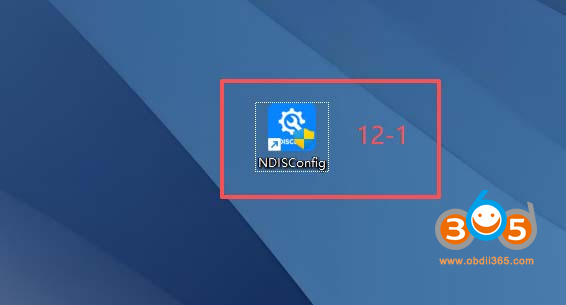
5. Click NDISConfig. (Note: If the CONSULT-IV NDIS Configuration interface fails to open, double-click the NDISConfig shortcut on the desktop.)
NDISConfig shortcut:
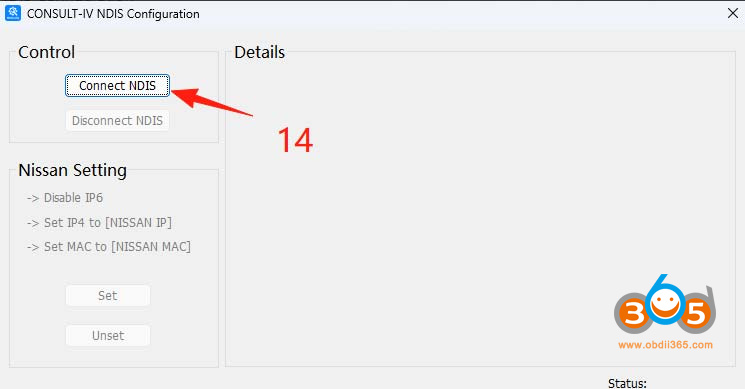
6. In the CONSULT-IV NDIS Configuration interface, click Connect NDIS to establish the connection.
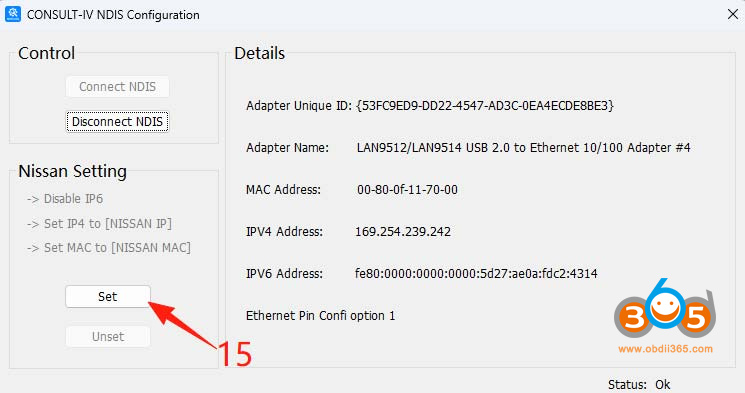
7. Once the connection is successfully established, click Set, and the software will automatically configure the MAC address and IP address.
8. After the automatic configuration is finished, click × to close the window.
9. Double-click CONSULT-IV to launch the software.
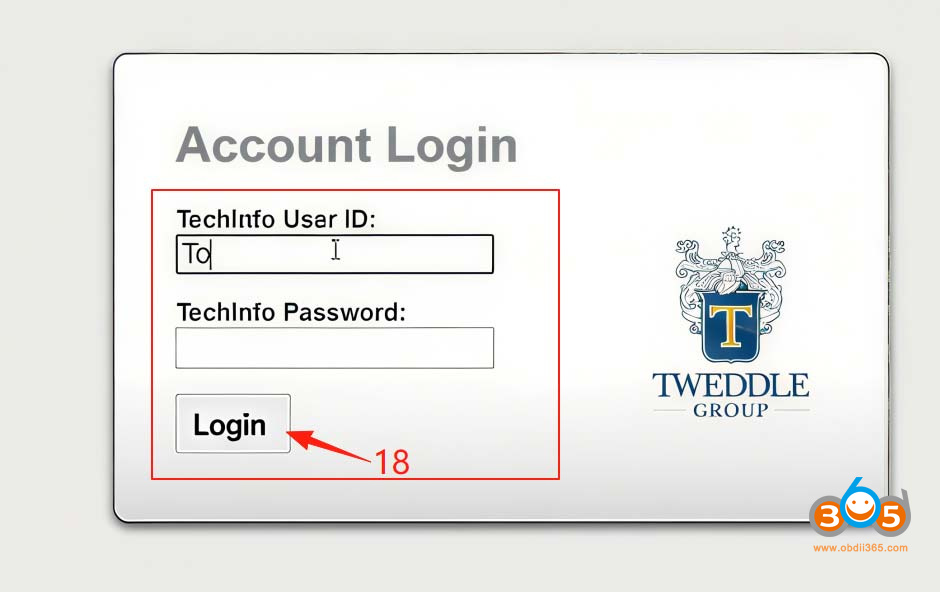
10. Sign in with the account that has subscribed to the C4 R2R software.
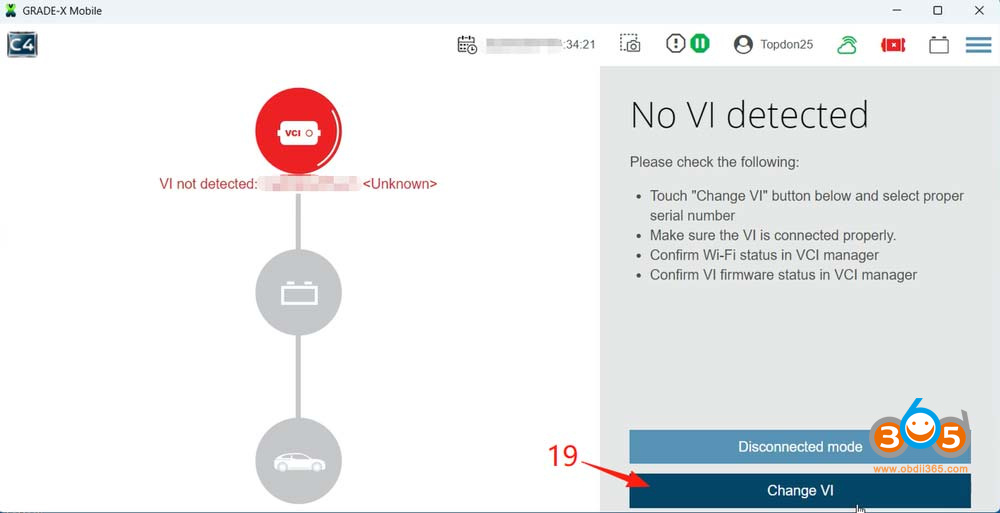
11. After logging in, click Change Vl.
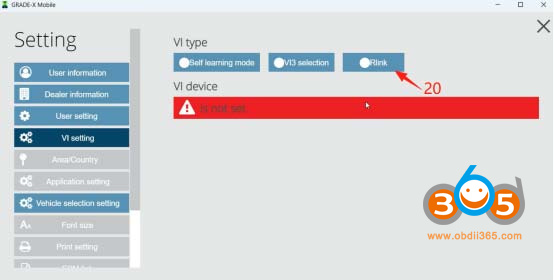
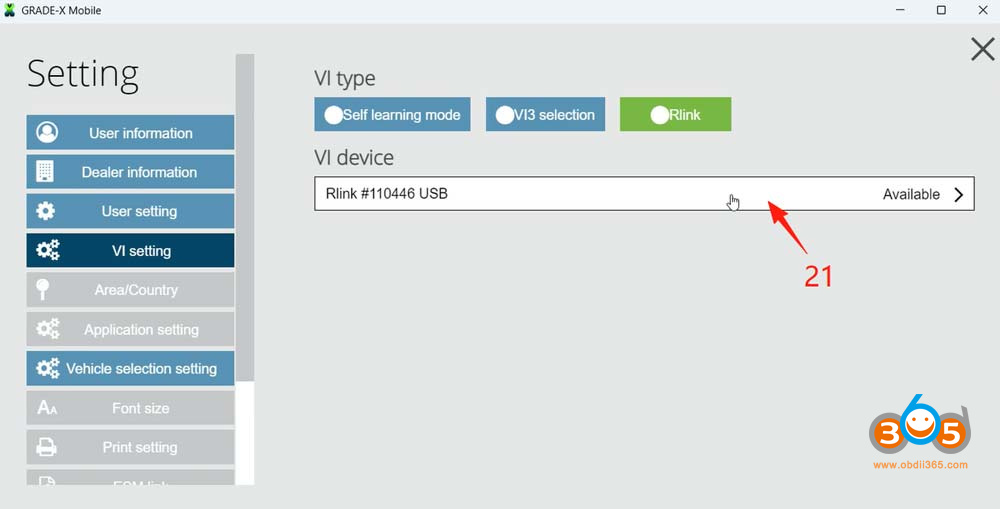
13. After the software detects the RLink, click RLink USB.
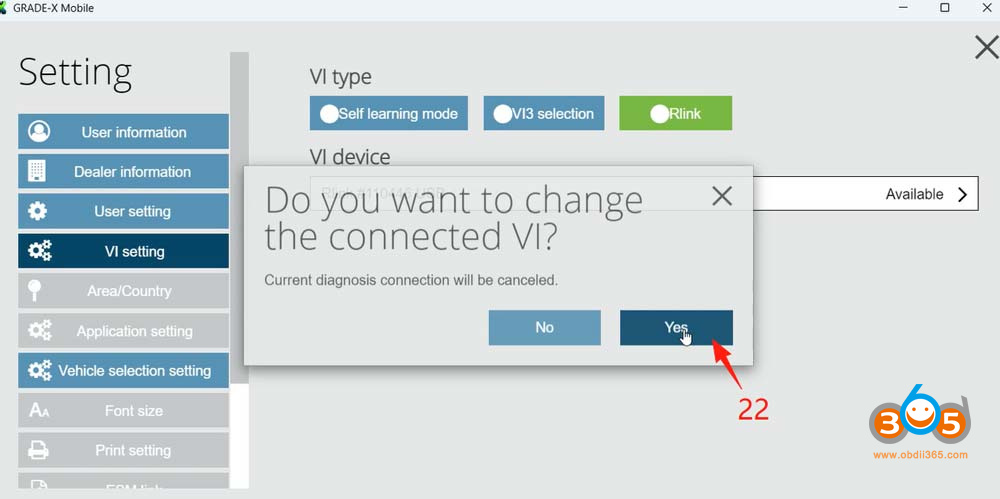
14. Click Yes in the pop-up window.
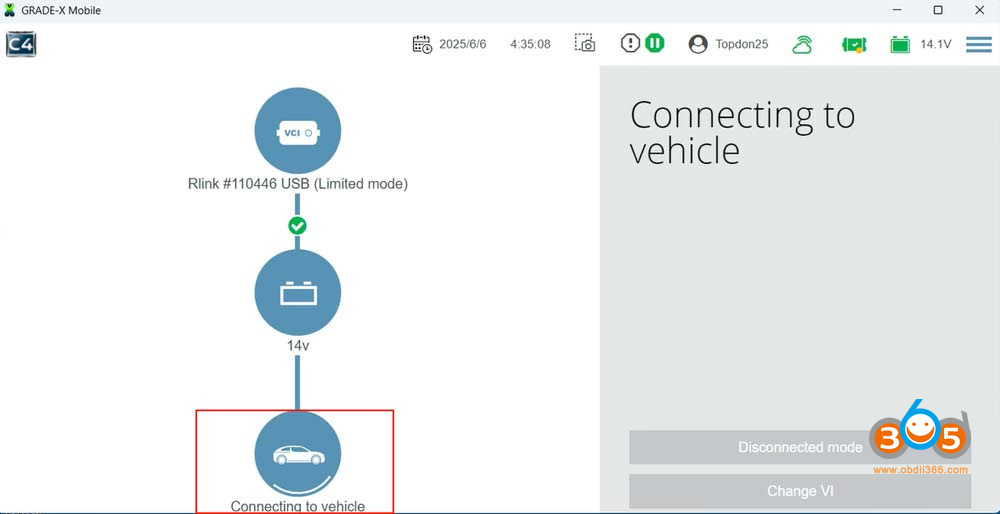
15. Wait until the connection is completed.
16. If the connection is established, scroll down the page and click Save.
17. After completing the above steps, the software will automatically detect the vehicle and perform diagnostics. 


No comments:
Post a Comment